Organisation settings
Your church's name, logos, contact details and country, campuses, the member app join link, and deleting your organisation.
Settings > Organisation holds the details that describe your church everywhere in ChurchStack.
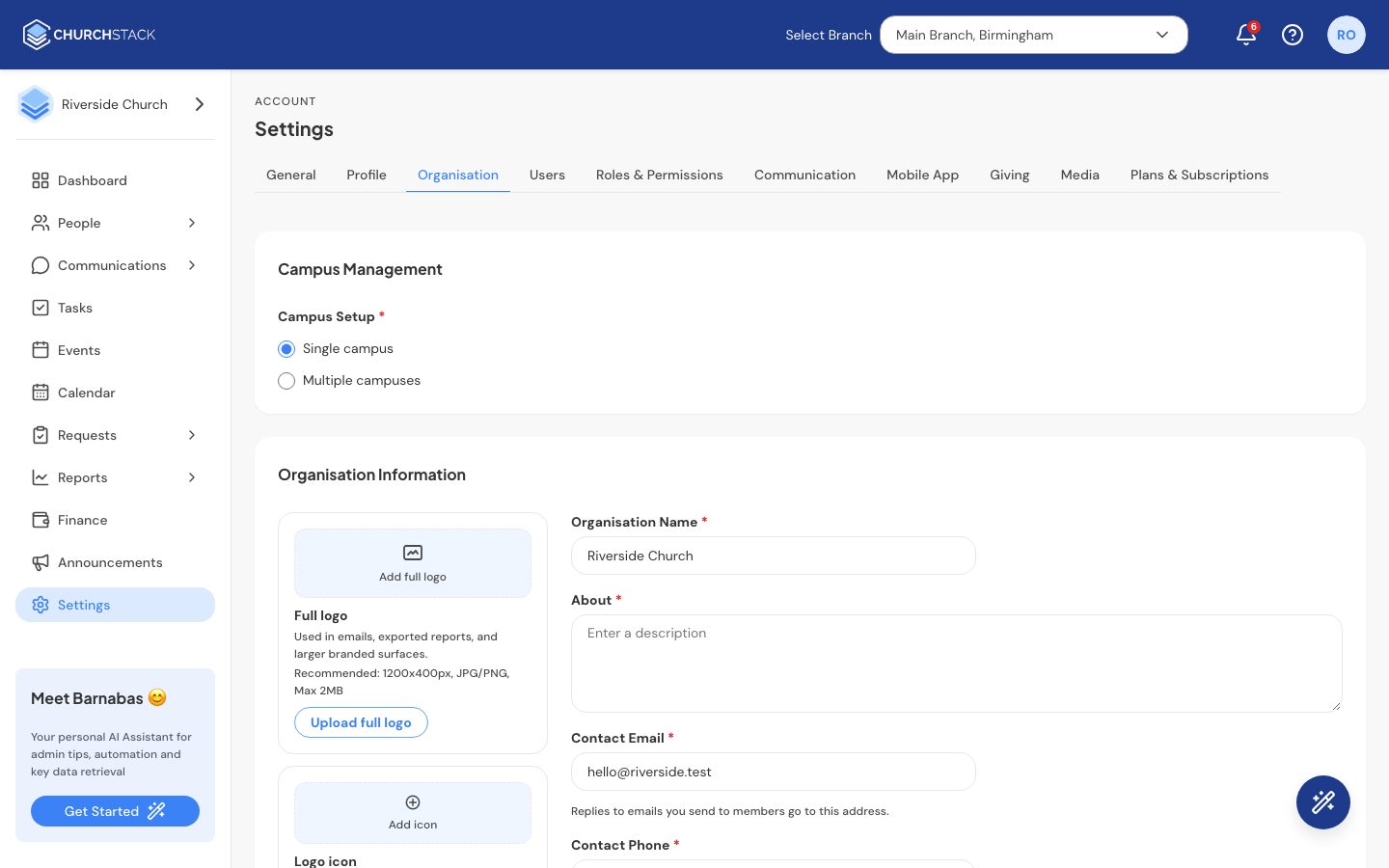
Organisation information
- Full logo: used in emails, exported reports and other larger places. About 1200 x 400 pixels, JPG or PNG, up to 2 MB.
- Logo icon: a square version used in the collapsed sidebar and on your contact form. About 500 x 500 pixels, up to 1 MB.
- Logo for dark mode (optional): a light version of your full logo, shown in the member app when someone’s phone is in dark mode. A PNG with a transparent background works best.
- Organisation Name, About, Contact Phone.
- Contact Email: replies to emails you send to members go here.
- Country: also decides where you can send SMS. You can only text numbers in this country.
Select Save Changes after editing.
Member app join link
This link and QR code open the member app straight to sign-in for your church, so members do not have to search for it. Put it on a welcome card, a poster or in a text message, or print the QR code for your welcome desk.
Campuses
Under Campus Management, choose Single campus or Multiple campuses. Running more than one campus is part of Pro.
With multiple campuses switched on:
- Select + Add New Campus and enter its name, city, country, address and post code.
- Each campus shows how many people and users it has. One is marked Primary.
- Use Edit or Delete on a campus. Deleting a campus moves its people, events, groups and other records to another campus you choose. It cannot be undone.
Once you have campuses, everyone can switch between them from the header, and new contacts, groups and events belong to the campus selected at the time.
Delete your organisation
Only the Owner can do this. In the Danger Zone, select Delete Organisation, optionally tell us why you are leaving, and type your organisation’s name to confirm.
For safety, deletion does not happen straight away. Your organisation is scheduled for permanent deletion in 14 days, and you can select Cancel deletion on this page at any time before then. After that, all your data, including members, groups, events, attendance, messages, tasks and reports, is erased and cannot be recovered.
Tell us what you were trying to do and we will help.