Invite your team
Give your staff and leaders their own sign-in, choose their role, and manage pending invitations.
Everyone who helps run the church should have their own sign-in rather than sharing one. That way each person sees only what their role allows, and you can see who did what.
Send an invitation
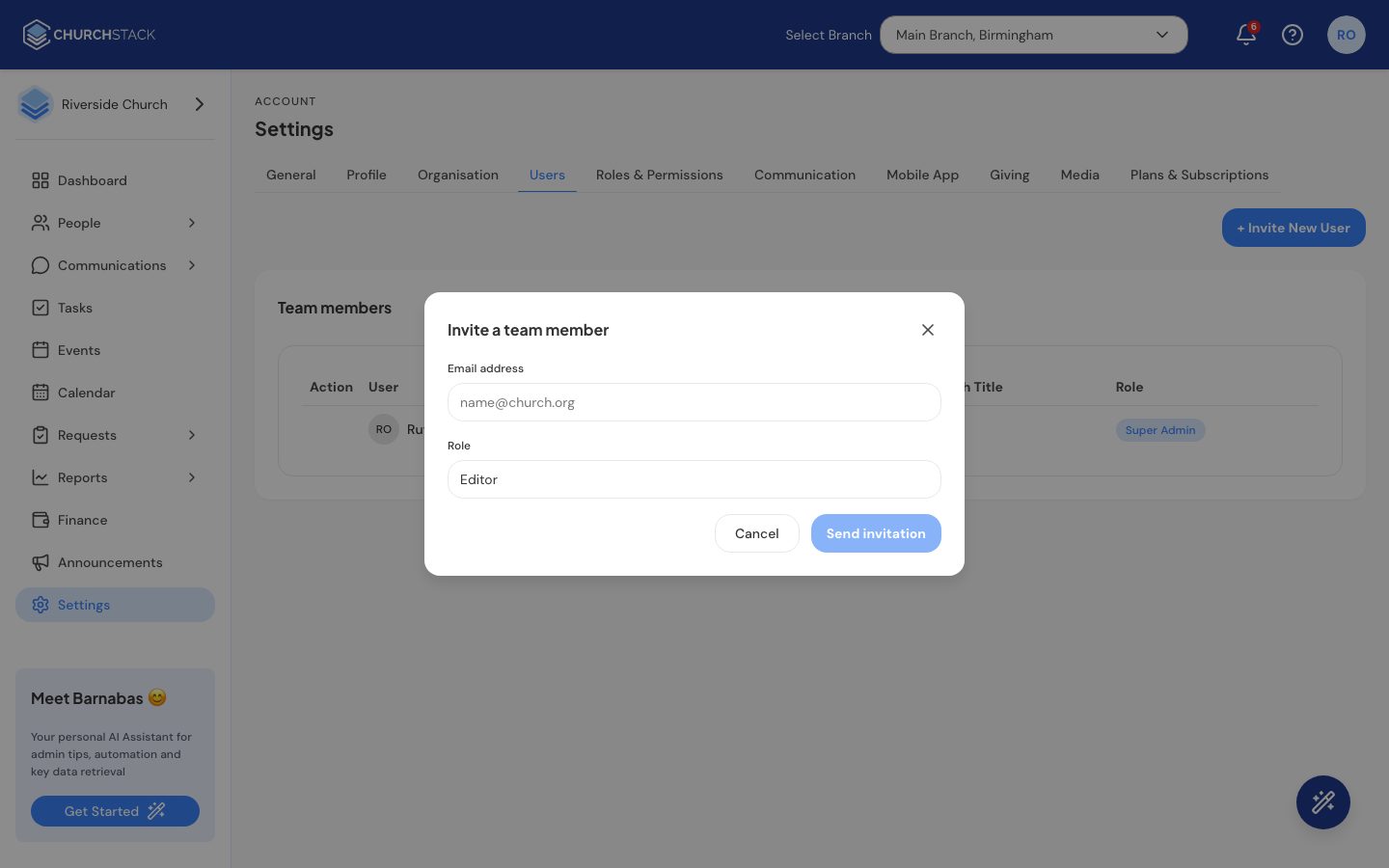
- Go to Settings > Users.
- Select + Invite New User.
- Enter their email address and choose a Role: Admin, Editor or Viewer.
- Select Send invitation.
They receive an email with a link. It opens a Create Your Account page already linked to your church, where they enter their name and choose a password. The link works for seven days; after that, send a new invitation.
On the free plan you can invite Editors and Viewers. Adding more Admins needs Pro. The Owner (the person who signed up) is always an admin.
Which role to choose
| Role | Can do |
|---|---|
| Admin | Everything, including settings, billing and inviting users. |
| Editor | View and change things, but not delete them. |
| Viewer | Look, but not change anything. |
These are the starting points. You can change exactly what each role can see and do in Settings > Roles & Permissions. See Roles and permissions.
Pending invitations
Invitations that have not been accepted yet appear under Pending invitations on the same page. Select Revoke invitation beside one to cancel it, for example if you sent it to the wrong address. The link in that email then stops working.
Changing someone’s role or removing them
In the Team members list, open the row menu (the three dots) beside the person and choose Change role or Delete. Deleting removes their sign-in straight away. You cannot remove yourself, and nobody can remove the Owner.
Tell us what you were trying to do and we will help.