Send an email
Write an email to people, groups or tags, send it now or schedule it, and let Barnabas help with the wording.
- Go to Communications > Messages and select Create New Message > Create Email.
- Give the message a title at the top. Only your team sees this; it is how you find the message in the list later.
- Choose who it goes to (below).
- Write a Subject and the Body. The toolbar has headings, bold, italic, underline, lists, alignment, links and images.
- Select Send Now, or Send Later to schedule it.
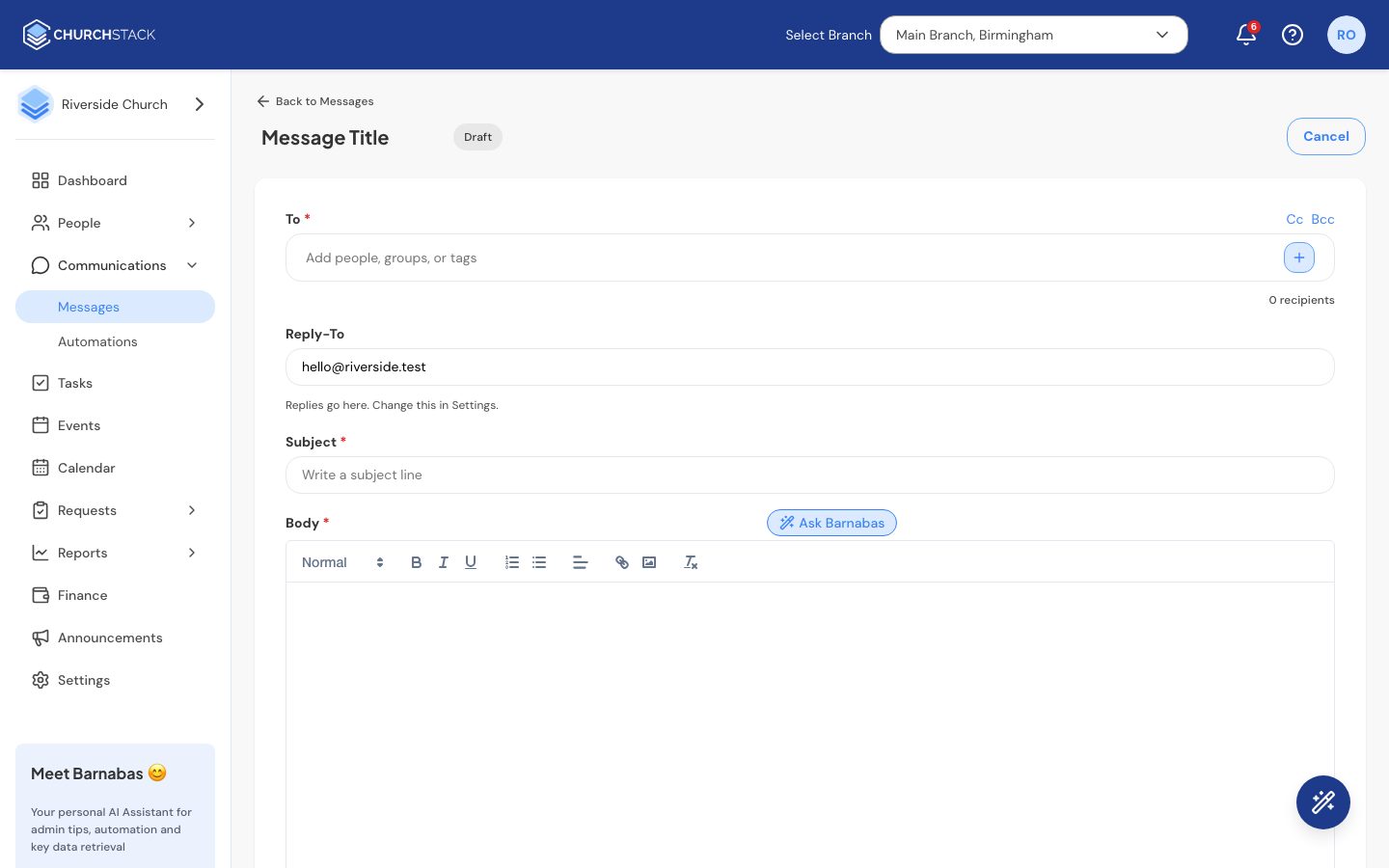
Choosing recipients
Select the To field. A picker opens with three tabs:
- People: individual contacts.
- Groups: everyone in a group.
- Tags: everyone with a tag.
You can mix all three. ChurchStack shows the total number of recipients and only sends once to someone who appears in more than one group or tag. Use Cc and Bcc to copy others in.
You can also start an email from elsewhere, for example by selecting contacts in People > Contacts and choosing Send Bulk Email. The recipients are filled in for you.
Replies
Replies go to the Reply-To address shown under the recipients. This is your church’s Contact Email, which you can change in Settings > Organisation.
Schedule for later
Select Send Later, pick a date and time and select Schedule. The time is your local time: the email goes out at that moment. To stop it, open the row menu in the messages list and select Cancel schedule.
Save a draft
Select Save draft and Exit to come back later. Drafts appear in the messages list.
Ask Barnabas to help
On Pro, select Ask Barnabas to have the body drafted or improved for you. See Ask Barnabas.
Unsubscribes
Every email includes an unsubscribe link at the bottom. People who unsubscribe are left out of future bulk emails automatically, so you do not need to remove them yourself.
Tell us what you were trying to do and we will help.