Home and checking in
For church members: what the home screen shows and how to check in at a service.
The home screen
- Happening now: when a service or event is on, it appears at the top with a Check in button.
- Quick actions: shortcuts to Events, Check in, My groups and Give.
- Upcoming events and the latest announcements. Swipe through announcements, or tap See all.
- The bell at the top shows your notifications. Tap your picture to open your profile.
Pull down on the screen to refresh it.
Check in at a service
Your church uses check-in to know who was there. There are two ways:
From the app
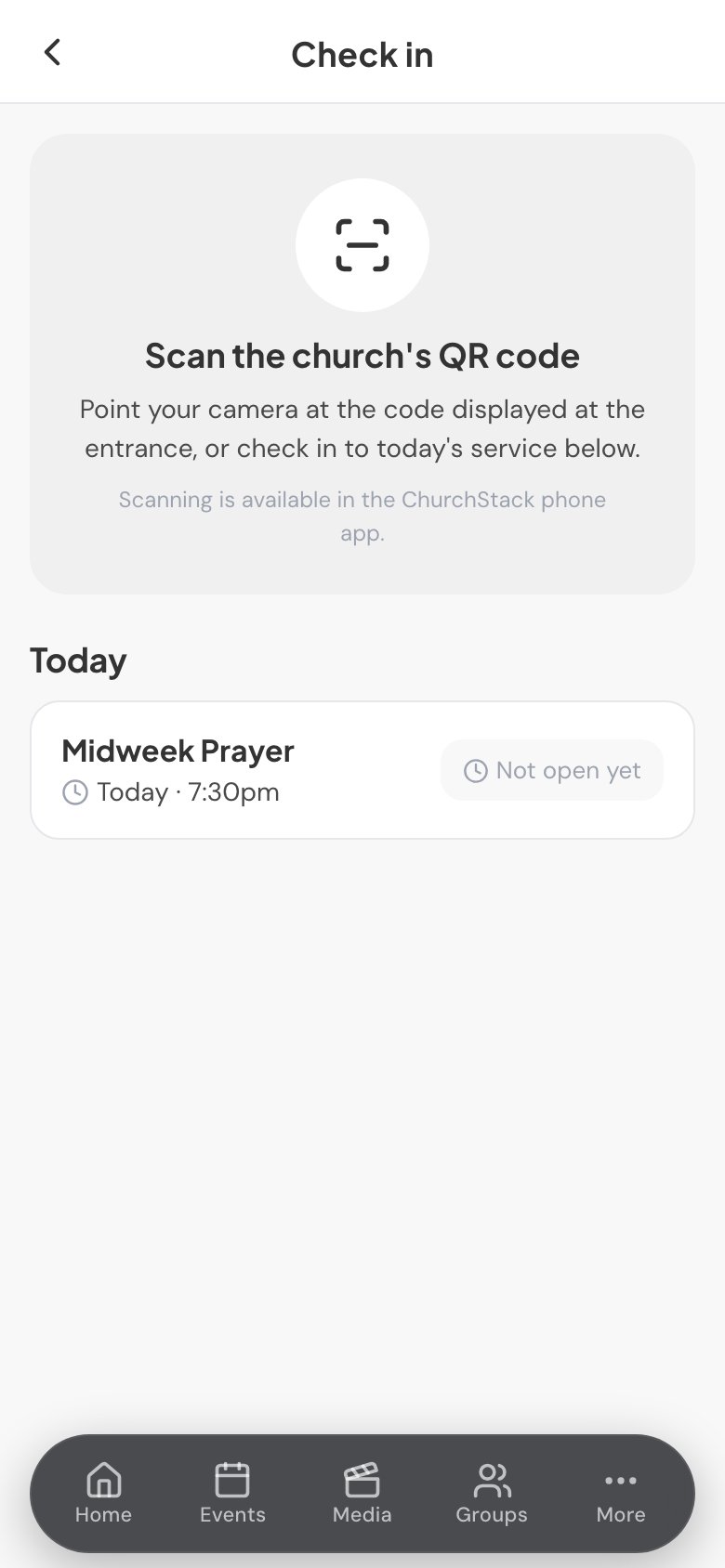
- Tap Check in on the home screen, or go to More > Check in.
- Under Today, tap Check in beside the service. If it says Not open yet, check-in opens an hour before the start.
By scanning the QR code
- In Check in, tap Scan QR code.
- Point your camera at the code shown at the entrance.
You can also scan the code with your phone’s normal camera, without the app. You will be asked for your email address instead.
Once you are checked in, you will see You’re checked in.
Still stuck?
Contact support Tell us what you were trying to do and we will help.