Group rotas
Plan who serves in which role on a given date, reuse last week's rota, and email the people on it.
A rota (sometimes called a roster) lists who is doing what on a particular date: who is leading worship, on sound, or welcoming at the door. Each group has its own rotas.
Create a rota
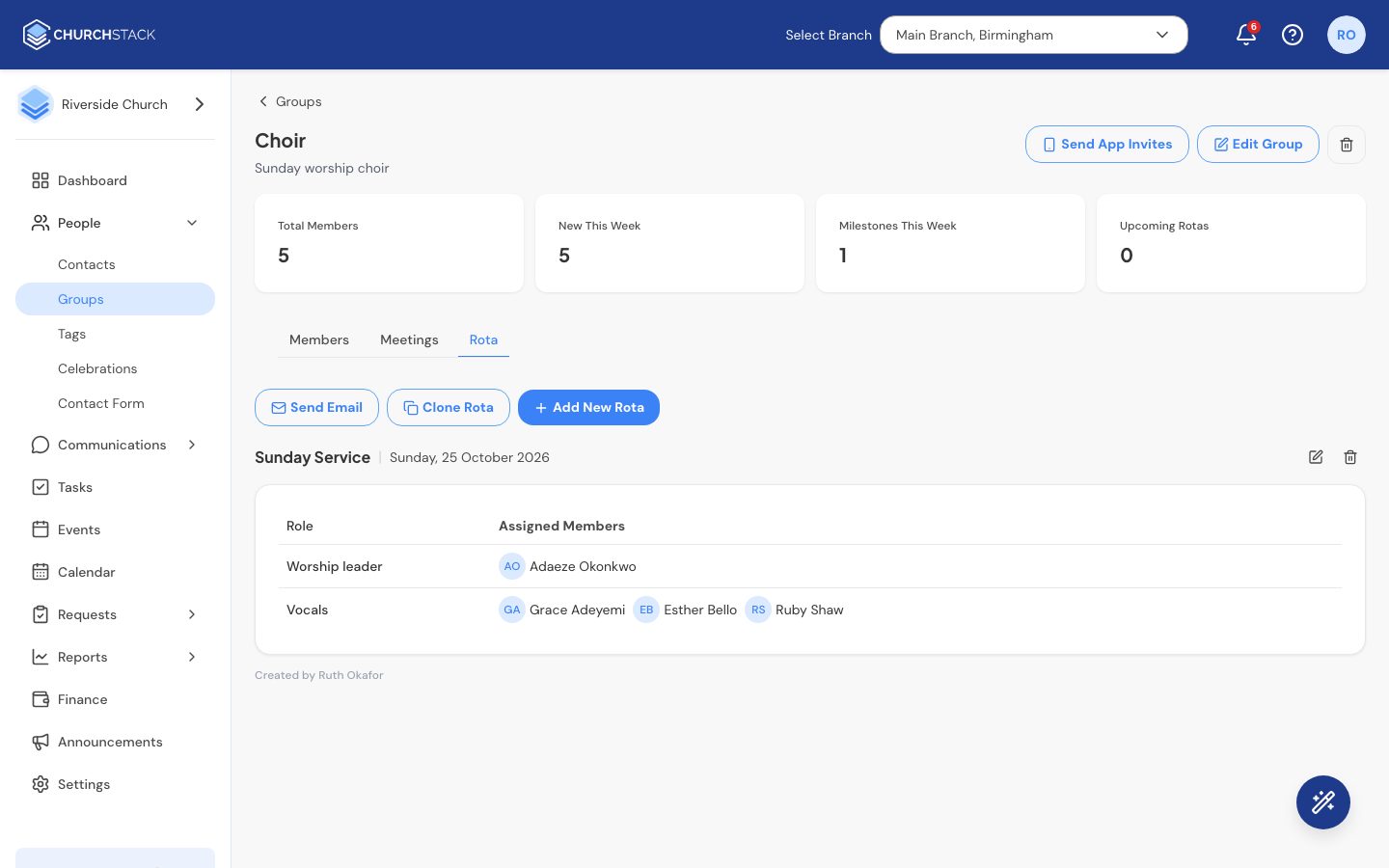
- Go to People > Groups, open the group and choose the Rota tab.
- Select Add New Rota.
- Give it a name (for example “Sunday 2 November”) and a date.
- Add each Role, such as “Worship leader”, and assign one or more members of the group to it. Select Add Role for the next one.
- Select Save New Rota.
Move between dates
The rota tab shows one date at a time. Use the arrows beside the date to step to the previous or next rota.
Save time with Clone
Select Clone Rota to copy the current rota, roles and people included, into a new one. Change the date and anyone who is swapping, then save.
Tell people they are serving
Select Send Email to email everyone assigned on the rota you are viewing.
Change or remove a rota
Use the edit button to change a rota, or the delete button to remove it. Deleting a rota cannot be undone.
Still stuck?
Contact support Tell us what you were trying to do and we will help.