Automations
Send an email or SMS automatically when someone joins or a tag is added or removed, including first-timer follow-up.
Automations send a message for you when something happens, so follow-up does not depend on someone remembering. A common one: email every first-time visitor the day they check in.
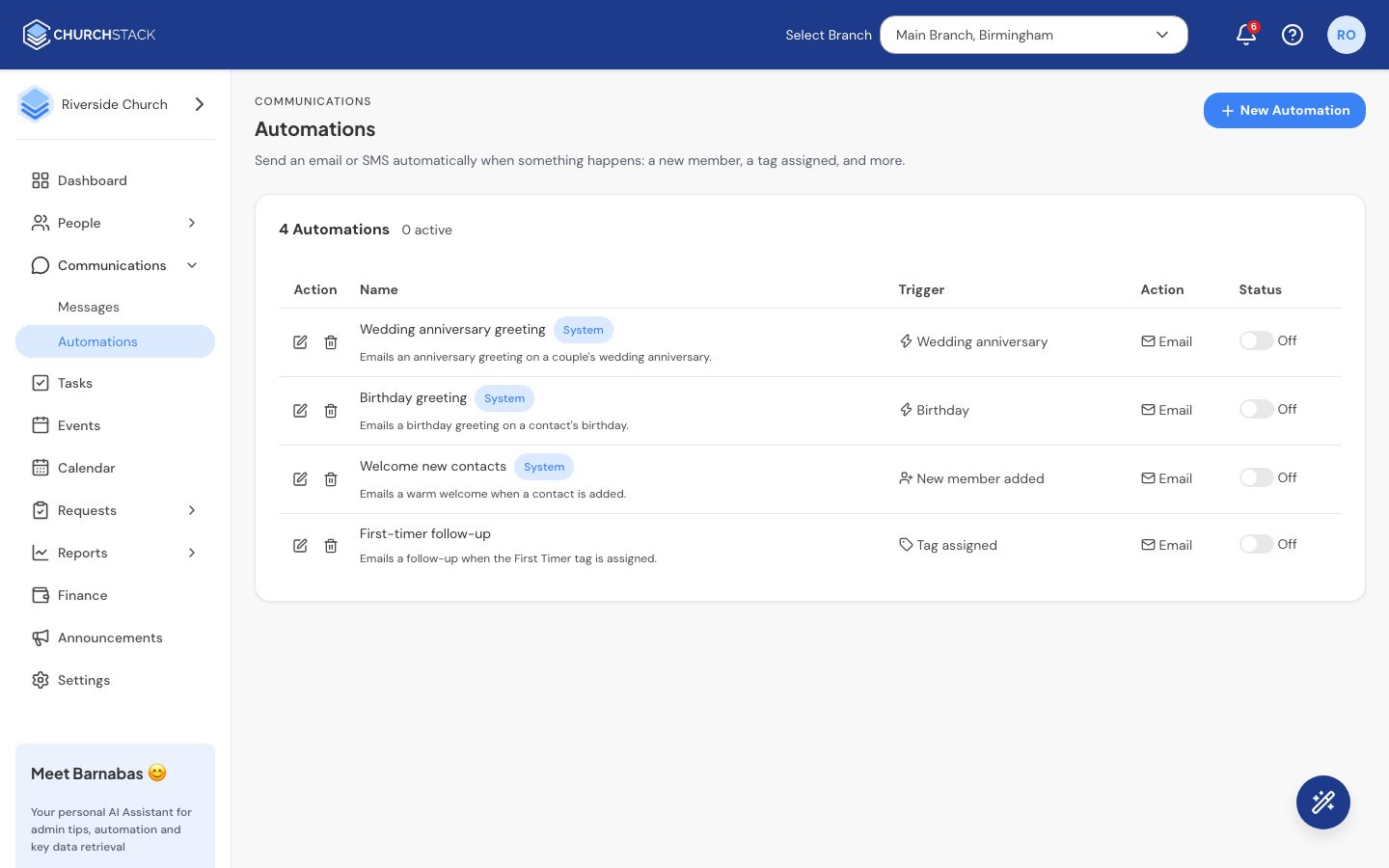
The first-timer follow-up
Every church starts with a First-timer follow-up automation, marked System. It emails a welcome when someone is tagged First Timer, which happens when they check in for the first time or are added as a first-time visitor. It starts off, so you can check the wording first.
- Go to Communications > Automations and select the First-timer follow-up.
- Edit the subject and message.
- Turn it On and save.
The trigger of a system automation is fixed, but you can change its message and switch it on or off.
Create your own
- Select New Automation.
- Give it a Name and, optionally, a description.
- Under When this happens, choose a Trigger:
- New member added: when a contact is created.
- Tag assigned: when a particular tag is added to someone. Choose the tag.
- Tag removed: when a particular tag is taken off.
- Birthday: on the morning of a contact’s birthday. Only contacts with a date of birth are included.
- Wedding anniversary: on the morning of a contact’s wedding anniversary. Only contacts with a wedding date are included.
- Under Do this, choose Email or SMS and write the message.
- Select Create automation.
Personalise the message
Use Insert to add merge fields. Each is replaced with the person’s details when the message sends:
| Field | Becomes |
|---|---|
{{first_name}} | Their first name |
{{last_name}} | Their last name |
{{full_name}} | Their full name |
{{church_name}} | Your church’s name |
Things to know
- Automations do not run for people added by a spreadsheet import, so importing your whole membership does not send hundreds of welcome emails.
- Turn an automation Off to pause it without losing it.
Tell us what you were trying to do and we will help.