Contacts
Find, add, edit and organise everyone connected to your church, from first-time visitors to long-standing members.
People > Contacts is the list of everyone your church knows: members, visitors and first-time guests. Most of ChurchStack, from groups and messages to events and giving, starts here.
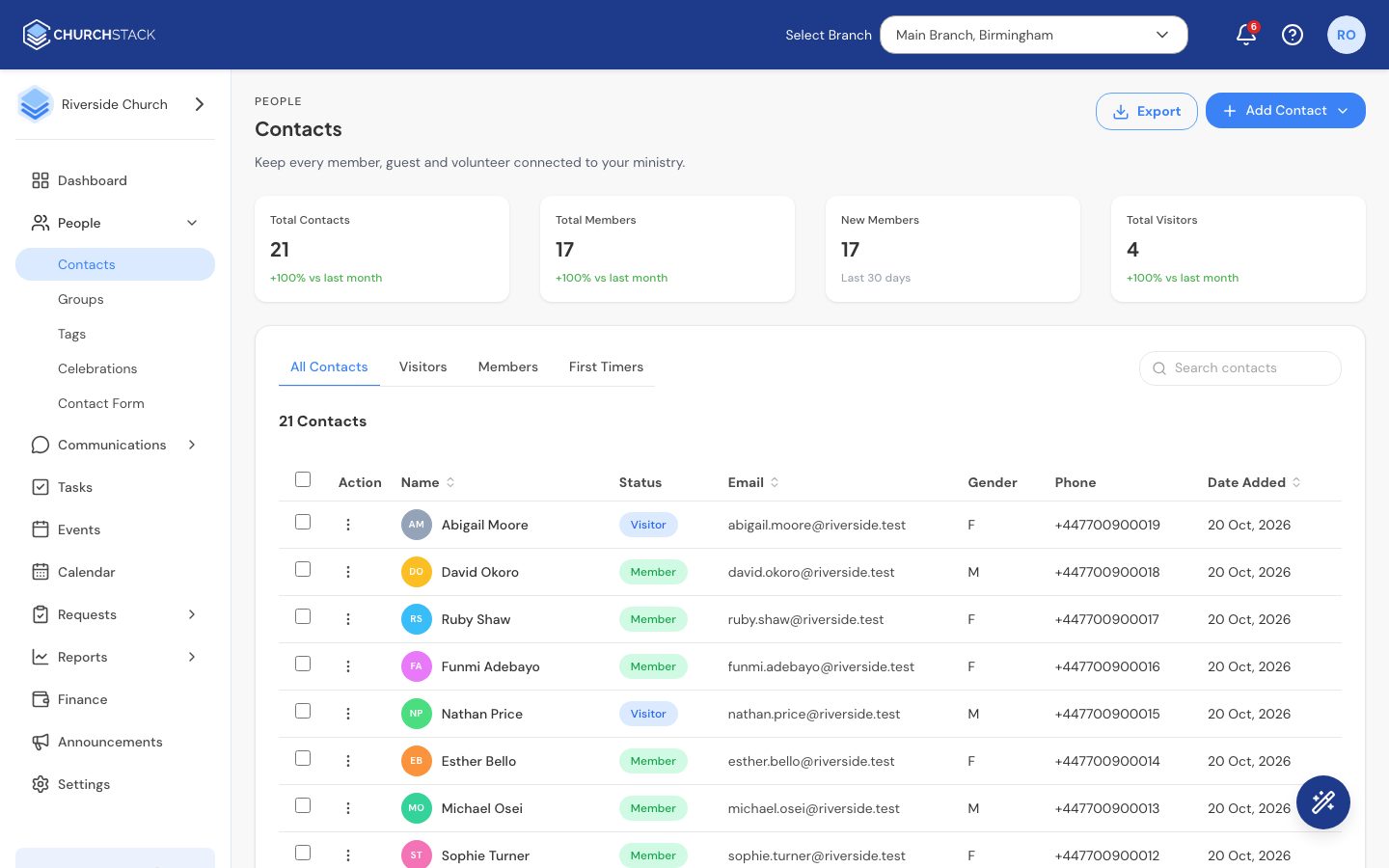
The page at a glance
- Stat cards: Total Contacts, Total Members, New Members (last 30 days) and Total Visitors, each compared with last month.
- Filter tabs: All Contacts, Visitors, Members and First Timers.
- Search: find someone by name or email address.
- Export: download the list you are looking at as a CSV file. Your search and filter tab are applied, so you can export just your visitors, for example.
Add a contact
- Select Add Contact, then Add Manually.
- Fill in their details. First name, last name, gender, email address, phone number and membership status are required. Everything else is optional.
- Tick First-time visitor if they are new. They are tagged as a First Timer, which can start your first-timer follow-up automation.
- Choose any Church Groups and Tags they belong to.
- Select Save Contact.
You can add a photo (JPG or PNG, up to 2 MB) at the top of the form.
If your church has more than one campus, the contact is added to the campus selected in the header. Switch campus first if you need to.
To add lots of people at once, use Add Contact > Import Contacts. See Import contacts from a spreadsheet.
View and edit someone
Select a contact’s name to open their details on the right. The panel has three tabs:
- Personal Info: email, phone, gender, marital status, birthday and age, wedding date, address and the date they were added.
- Church Details: campus, church title (for example Pastor or Deacon), the groups they belong to and lead, and their tags.
- Notes: short notes from your team, each up to 500 characters, showing who added it and when.
Select Edit to change their details, then Save.
To move someone to another campus, remove them from all their groups first. Groups belong to one campus.
Do something with one contact
Open the row menu (the three dots) at the start of a row for: View Contact, Edit Details, Send Email, Send SMS, Send App Invite, Add to Group, Add Tag, Add Note and Delete Contact.
Send App Invite emails them a link to your church’s member app. See Invite members to the app.
Do something with many contacts
Tick the boxes beside the people you want. The count bar changes to show how many are selected, with actions for Send Bulk Email, Send Bulk SMS, Add to Group, Add Tag and Delete.
Members who deleted their app account
If someone deletes their account in the member app, their contact page says Member app access deleted and the date. Select Restore access if they ask to come back. They can sign in again, but any personal details they cleared are not recovered.
Tell us what you were trying to do and we will help.