Programme, RSVPs and invitations
Build the running order for a service, ask members to RSVP, and invite people by email or SMS.
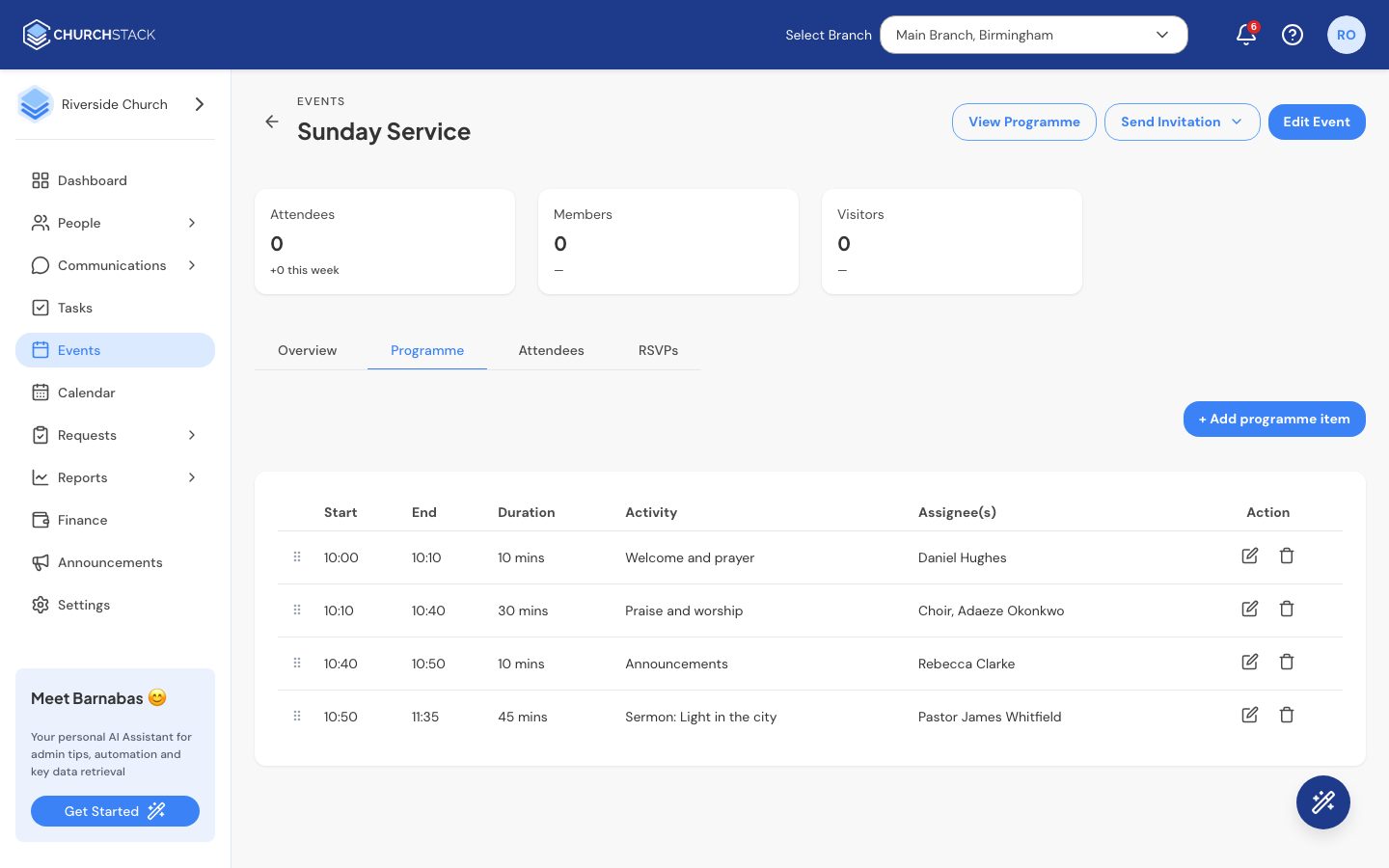
Build the programme
The Programme tab is the running order for the event: what happens when, and who is responsible.
- Open the event and go to the Programme tab.
- Select + Add programme item.
- Enter the Activity (for example “Praise & Worship”), the Start and End times and the Assignee(s) (for example “Choir Team”).
- Select Add item.
Drag items by the handle to reorder them. Use the edit and remove buttons on each row to change or delete an item.
Select View Programme at the top of the event to see the whole programme on one page, and Download PDF to print it or send it to your team.
Ask members to RSVP
RSVPs are off by default, because you rarely need numbers for a weekly service. For events where you do:
- Open the event and go to the RSVPs tab.
- Turn on Ask members to RSVP to this event.
Members then see Going and Can’t make it buttons on the event in the member app. The tab shows how many are going and who replied, with their email, phone and when they answered.
Invite people
Select Send Invitation at the top of the event and choose Invite by email or Invite by SMS. This opens a new message with the event details, ready for you to choose who receives it. See Send an email.
Tell us what you were trying to do and we will help.