Import contacts from a spreadsheet
Bring your existing member list into ChurchStack from Excel or CSV, check it for mistakes and import it in one go.
If you already keep your members in a spreadsheet or another system, you can import them all at once instead of typing each person in.
1. Download a template
Go to People > Contacts, select Add Contact > Import Contacts, and download a template:
- Excel Template (.xlsx) has dropdowns, checks and sample rows. Best if you are starting fresh.
- CSV Template (.csv) suits exporting from another system.
Keep the column headings exactly as they are in the template.
2. Fill in your contacts
Four columns are required: First Name, Last Name, Gender and Membership Status. The rest are optional.
Some columns only accept certain values:
| Column | Accepted values |
|---|---|
| Gender | Male, Female |
| Membership Status | Visitor, First Timer, Member |
| Marital Status | Single, Married, Divorced, Widowed |
- Dates must be written as year-month-day, for example
1990-05-12. - Phone numbers should start with the country code, for example
+447123456789for a UK mobile.
3. Upload and review
- Drag your file onto the page, or select Browse Files. Files can be .csv or .xlsx, up to 50 MB.
- Select Upload Contact File.
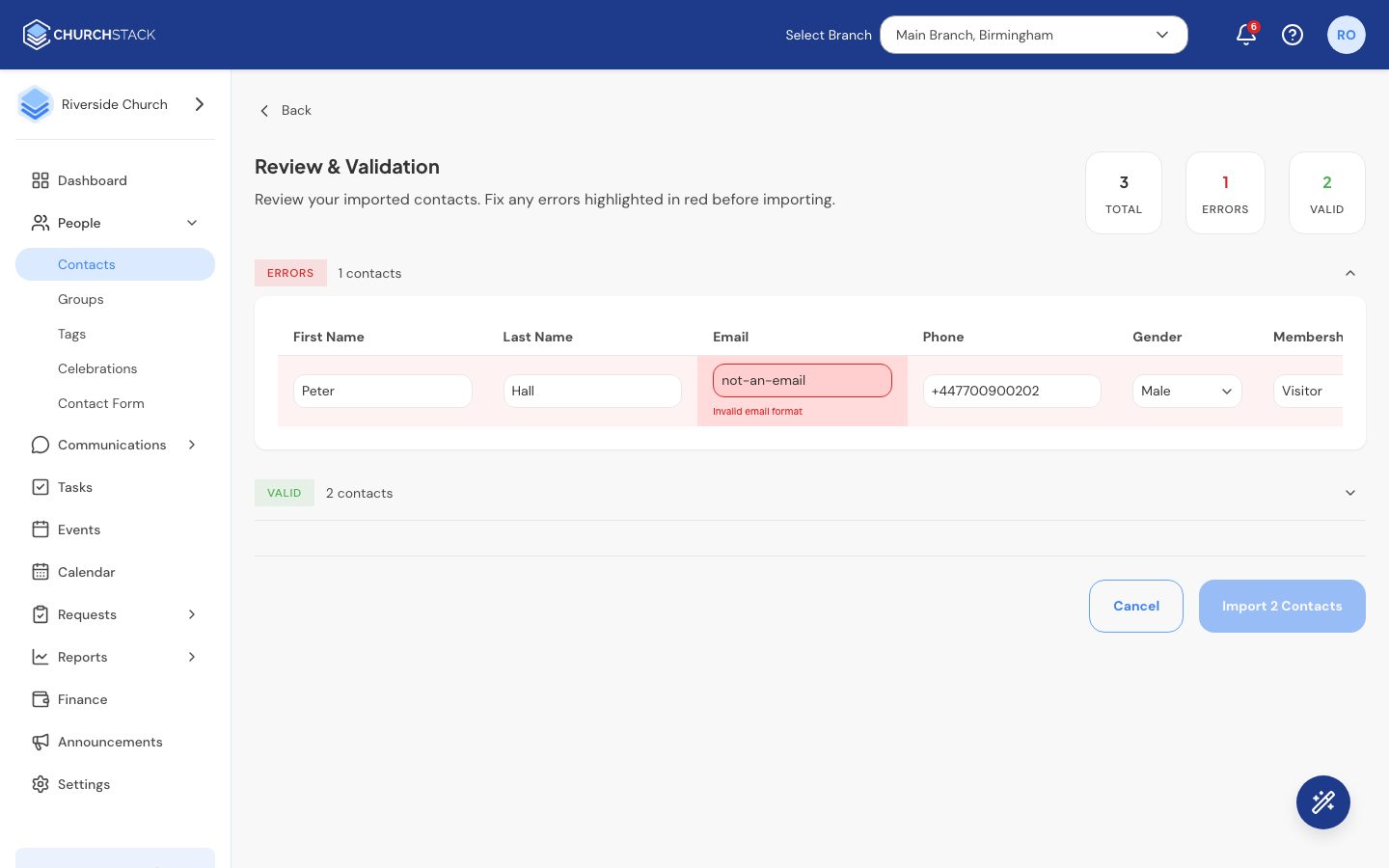
- The Review & Validation screen shows how many rows are valid and how many have errors. Rows with problems are highlighted in red, with the reason.
- Fix errors straight in the table. You do not need to go back to your spreadsheet.
4. Import
When you are happy, select Import N Contacts and confirm. Only valid rows are imported, so anything still showing an error is left out.
The free plan holds up to 150 people. If a file would take you past that, nothing is imported and ChurchStack tells you how many places are left. Upgrade to Pro, or import a smaller file. See Plans and billing.
Tell us what you were trying to do and we will help.