Create an event or meeting
Set up a church-wide event or a group meeting, make it repeat, and add a venue, an online link or both.
- Go to Events and select Add New Event.
- Under Type of entry, choose Event or Meeting:
- Events are for the whole church.
- Meetings are for particular groups and appear on those groups’ Meetings tab.
- Fill in the details below and select Create Event.
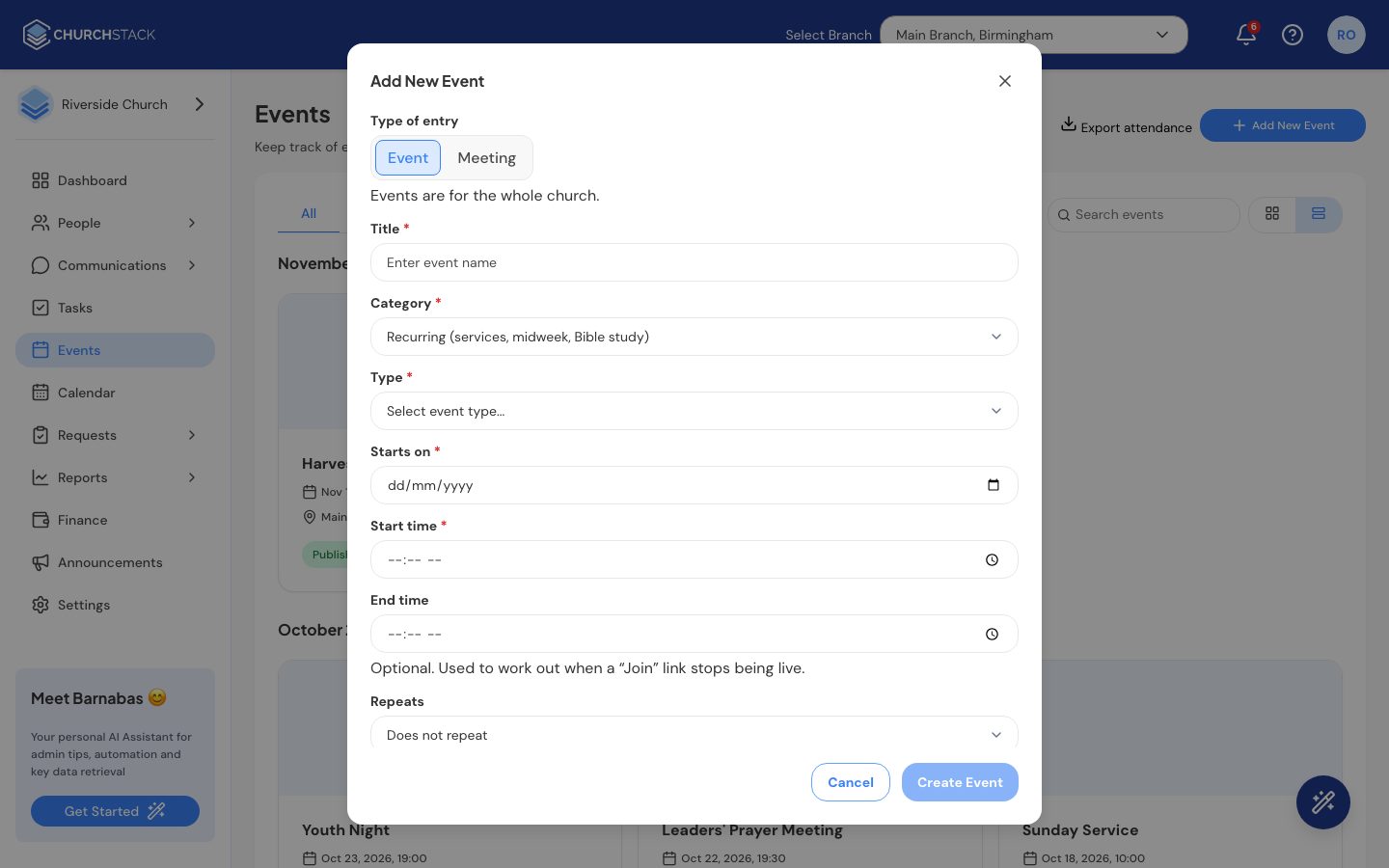
The details
- Title and Category: the category is Recurring (services, midweek, Bible study) or Special (conferences and one-off events).
- Type: Service, Midweek, Bible Study, Conference, Outreach, Programme or Admin. Reports group attendance by type.
- Date, start time and end time: the end time is optional. For online events it decides when the Join button stops showing.
- Repeats: choose from Does not repeat, Daily, Every weekday, Weekly, Every 2 weeks, or Monthly (for example “Monthly on the first Sunday”). The options follow the date you picked.
- Where: In person (enter a venue), Online (add a meeting link from Zoom, Google Meet, Teams or similar, plus any joining details such as a passcode) or Both.
- Description, Guests/Speakers and Coordinator(s): coordinators are the members responsible for the event.
- Event Flyer: a JPG, PNG or PDF up to 10 MB. A square image of about 1000 x 1000 pixels looks best in the member app.
Meetings: choosing who it is for
For a meeting, tick the groups it is for under Who is it for. Only those groups see it. Leave them all unticked for a church-wide meeting. You can also add an Agenda.
Registration
Tick People need to register for this event and paste a Registration link (for example a form or ticketing page). Members then see a Register button that opens it.
Editing and copying
Open the event and select Edit Event, or use Duplicate from the events list to start a new event from an existing one.
Still stuck?
Contact support Tell us what you were trying to do and we will help.