Find your way around
The sidebar, the header and where each part of ChurchStack lives.
The sidebar
Everything in ChurchStack is reached from the sidebar on the left.
| Item | What you do there |
|---|---|
| Dashboard | See this week at a glance: people, attendance, upcoming events and tasks. |
| People | Contacts, Groups, Tags, Celebrations and your Contact Form. |
| Communications | Messages (email and SMS) and Automations. |
| Tasks | Plan and assign work, in a list or on a board. |
| Events | Services and events, registration and check-in. |
| Calendar | Every service, meeting and event by month, including repeats. |
| Requests | Member requests from the app, and Team approvals between staff. |
| Reports | Analytics and Submitted Reports. |
| Finance | Giving, counting, expenses, categories and statements. |
| Announcements | News for the member app. |
| Settings | Your organisation, team, giving, media and plan. |
You only see the parts your role allows. If something is missing, ask your church’s Owner or an Admin. See Roles and permissions.
On a phone or small tablet, the sidebar is behind the menu button at the top left.
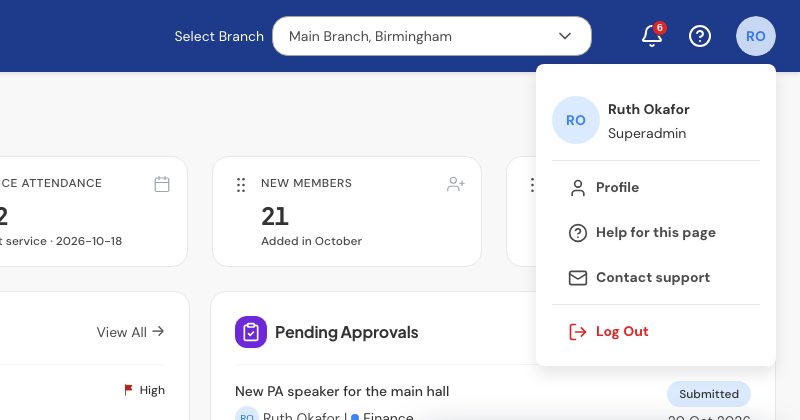
The header
Along the top of every page:
- Campus switcher (if your church has more than one campus): choose which campus you are working in. Lists and reports follow your choice.
- Notifications (the bell): things that need your attention, such as a task assigned to you or a request to approve. Select Mark all read to clear the dot.
- Help (the question mark): opens the help article for the page you are on.
- Your profile: your name and role, with links to Profile, Help for this page, Contact support and Log Out.
Barnabas
The Barnabas button opens your AI assistant, which can answer questions about your church’s data and draft messages. See Ask Barnabas.
Still stuck?
Contact support Tell us what you were trying to do and we will help.