Record and manage giving
Add gifts by hand, import a bank or Stripe export, confirm transfers members tell you about, refund card gifts and export the lot.
Finance > Giving is the full list of gifts. Gifts arrive in four ways:
- Card gifts made in the member app are recorded automatically.
- Bank transfers a member tells you about in the app arrive as To confirm.
- Counted offerings are added when you close a count. See Count the offering.
- By hand or by import, for anything else.
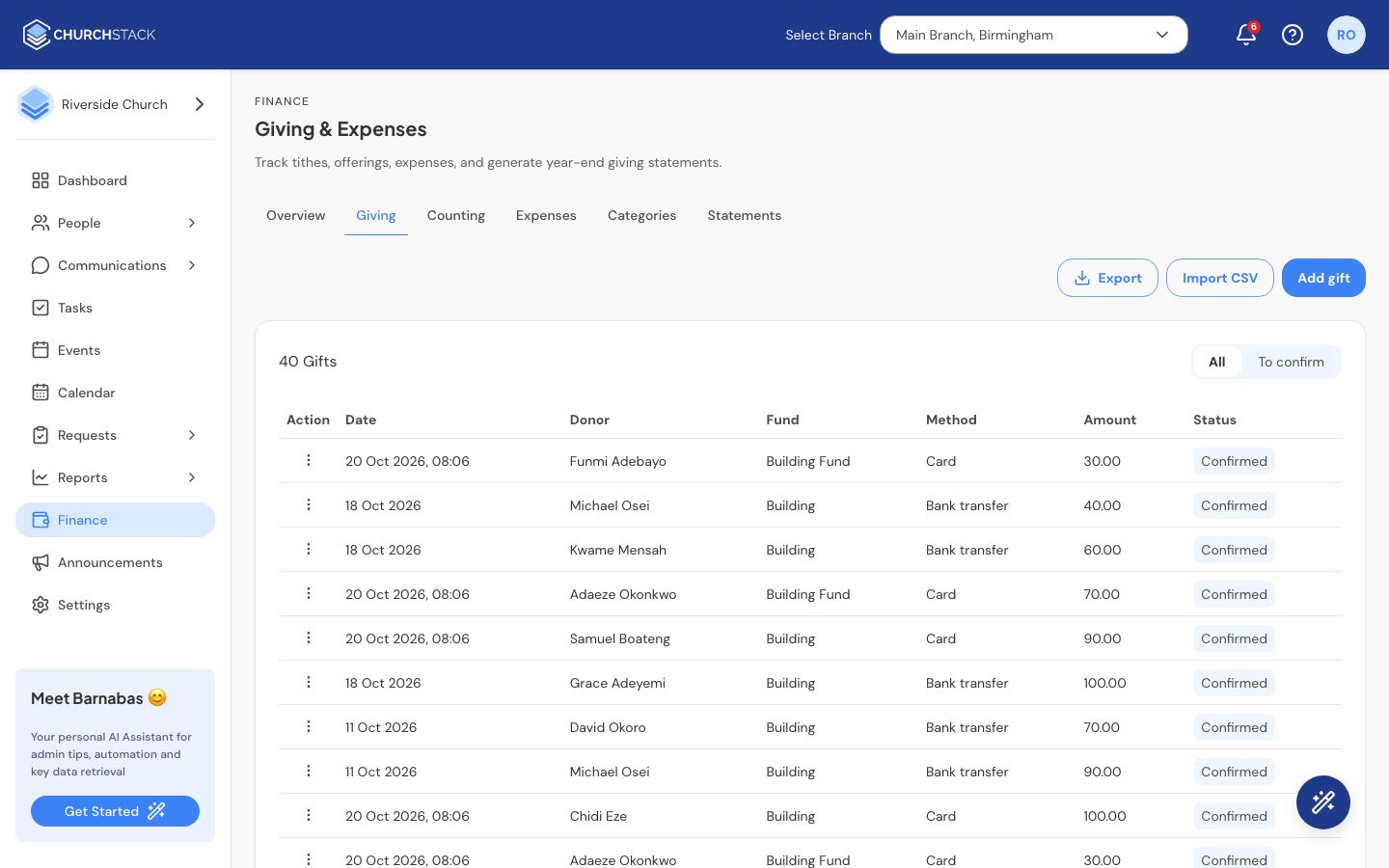
Add a gift by hand
- Select Add gift.
- Choose the Donor (or leave it blank for an anonymous gift), the Fund and the Amount.
- Set the Date and Method: Cash, Cheque, Bank transfer, Card or Other.
- Add a Reference or Notes if useful, then select Add gift.
Import from your bank or Stripe
- Select Import CSV and upload an export from your bank or Stripe. It needs columns for the donor’s name, amount and date, and can include a reference.
- ChurchStack tries to match each payer to a contact and shows how confident the match is. Check each one, change it if it is wrong, or choose No match (anonymous).
- Choose a fund for each row.
- Select Confirm import.
Confirm bank transfers
When a member gives by bank transfer in the app, they tap to say they have sent it. That gift appears under the To confirm filter. It does not count towards your totals until someone checks it.
- Check your bank statement for the payment.
- Open the gift’s row menu and select Confirm received. Adjust the amount or date if what arrived differs, then confirm.
- If nothing arrived, select Not received and add a note. The record is kept so you can see what was claimed if the member asks, but it does not count.
Refund a card gift
Open the gift’s row menu and select Refund. To make sure it is deliberate, you type the amount to confirm. The money goes back to the giver’s card within 5 to 10 days, and Stripe keeps its processing fee. The gift stops counting towards your totals and statements.
Only card gifts can be refunded from ChurchStack. A refund cannot be undone.
Statuses
| Status | Meaning |
|---|---|
| To confirm | A member says they sent it; nobody has checked yet. |
| Confirmed | Received and counted. |
| Not received | Checked and not found. Not counted. |
| Refunded | Returned to the giver. Not counted. |
Export
Select Export to download your giving as a CSV file for your accountant or spreadsheet.
Tell us what you were trying to do and we will help.