Create your church's account
Sign up, verify your email address and sign in to ChurchStack for the first time.
Whoever signs up becomes the Owner of the church’s account. The Owner always has full access and is the only person who can delete the organisation, so it is usually the senior pastor or church administrator.
Sign up
- Go to app.churchstackapp.com/auth/signup.
- Step 1, about you: enter your first name, last name, gender and email address, then select Next.
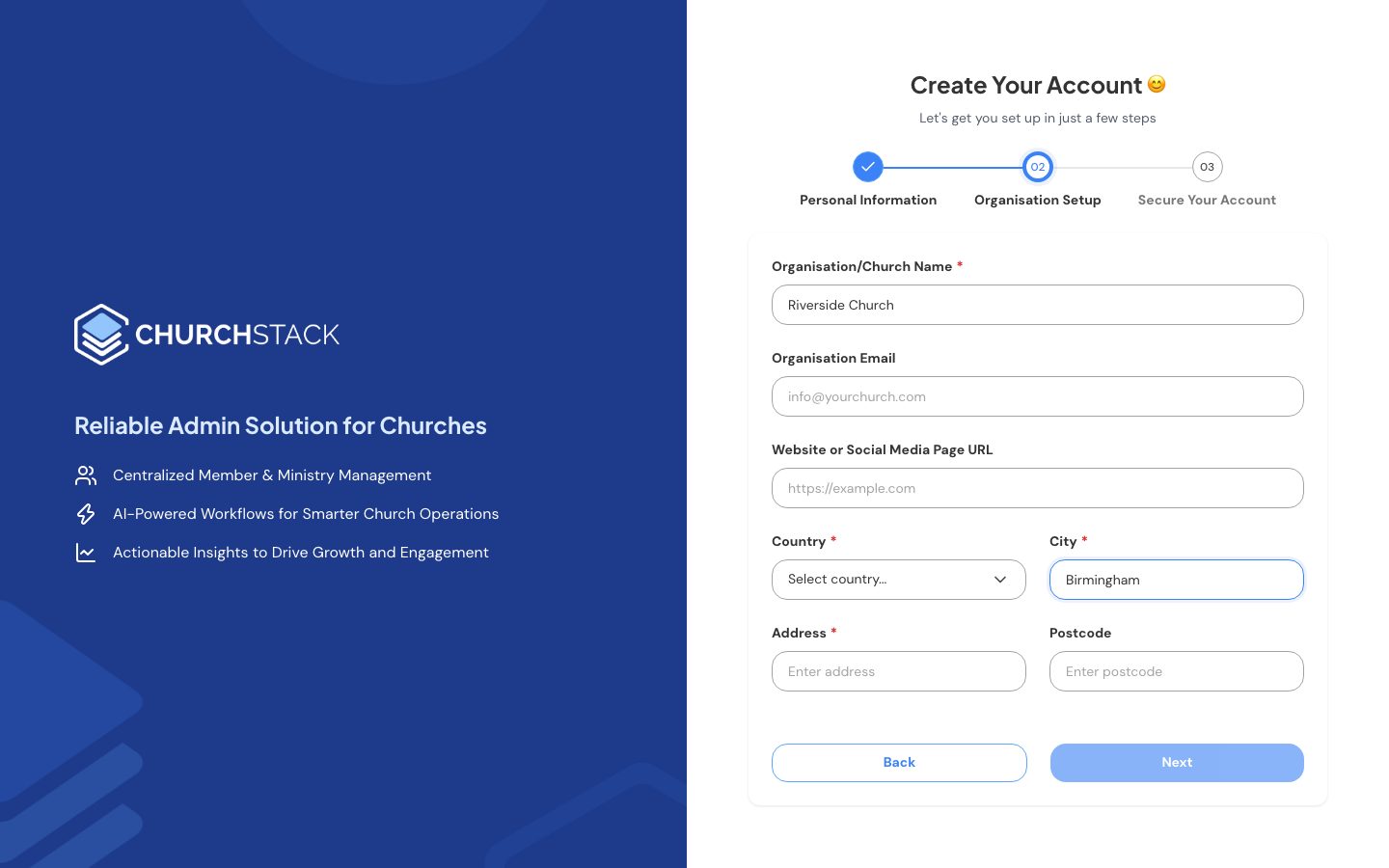
- Step 2, your church: enter your church’s name and email, a website or social media page (optional), and its country, city, address and postcode.
- Step 3, security: choose a password, add your phone number, tick to agree to the Terms of Service and Privacy Policy, then select Create Account.
Verify your email
We send a six-digit code to the email address you signed up with. Enter it on the Verify Your Account screen. You cannot sign in until the account is verified.
If the code has not arrived after a few minutes, check your junk folder, then use the option on the screen to send a new one. If you leave and come back later, signing in with an unverified account takes you straight back to this step.
Sign in
- Go to app.churchstackapp.com.
- Select your church: type at least two letters of its name, choose it from the list and select Continue.
- Enter your email address and password, then select Sign In.
ChurchStack remembers the church you chose last time. To sign in to a different one, select Change Church.
Forgotten your password
On the sign-in screen, select Forgot Password?, enter your email address and follow the steps. We email a code to confirm it is you, and then you choose a new password.
What next
When you first arrive you will see a short welcome and a setup checklist. See Your setup checklist.
Tell us what you were trying to do and we will help.