Member app settings and invites
Personalise the member app's home screen and invite your congregation to download it.
The ChurchStack member app puts your church in your congregation’s pocket: events, check-in, giving, groups, announcements and media. It is part of Pro. For how members use it, see the Member app section.
Invite members
There are three ways to get people into the app:
- One person: in People > Contacts, open their row menu and choose Send App Invite.
- A whole group: open the group and select Send App Invites.
- Anyone: share the Member app join link or its QR code from Settings > Organisation. It opens the app straight to sign-in for your church.
Members sign in with the email address you have on record for them. There is no password: they get a six-digit code by email. Make sure their email is correct in Contacts first.
Personalise the app
In Settings > Mobile App:
- Home banner: a wide image near the top of the home screen (about 1200 x 525 pixels). Upload your own, use the default, or turn it off.
- Appearance: the colour treatment the app uses.
- Section headings: rename the home screen’s Events and Announcements sections, for example to “Notices”, “Bulletins” or “News”. Up to 40 characters; leave blank for the default.
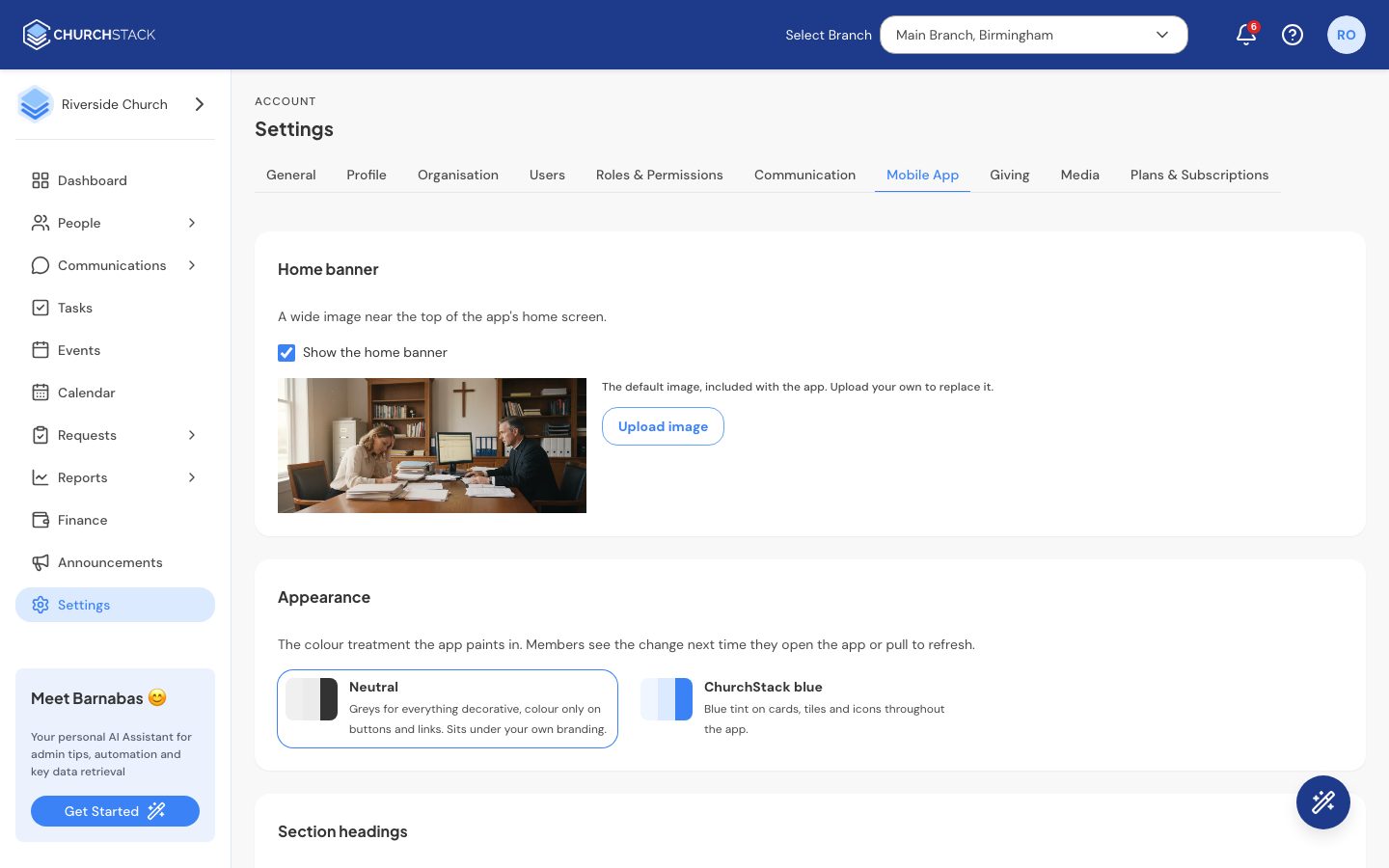
Changes reach members the next time they open the app or pull down to refresh. Nobody needs to reinstall anything.
Your church’s logos come from Settings > Organisation, and the Media tab from Settings > Media.
Tell us what you were trying to do and we will help.