Designed emails
Build a newsletter-style email from blocks, with your logo, images and buttons, then preview and send it.
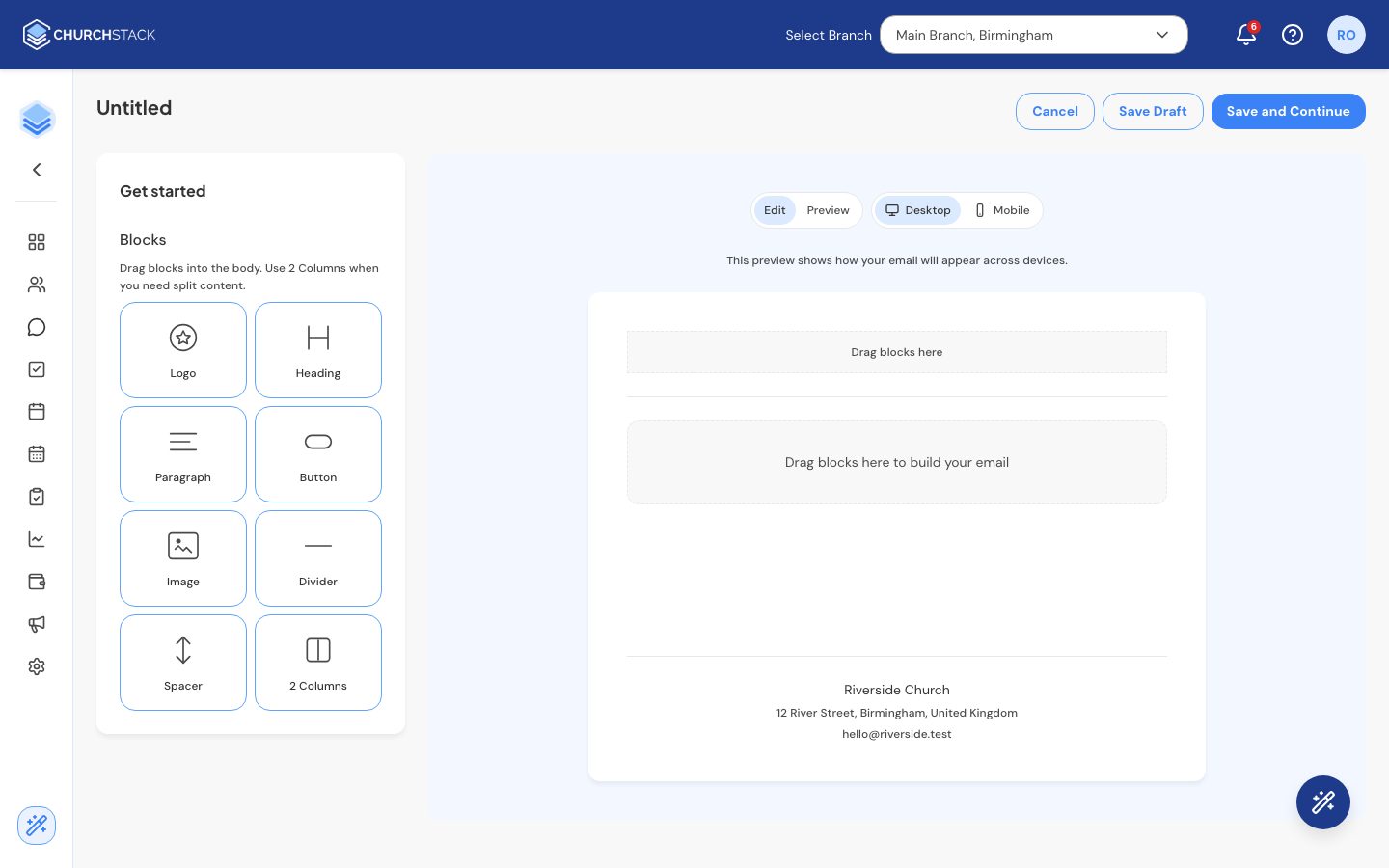
A designed email looks like a newsletter: your logo at the top, headings, images, buttons and two-column sections. Designed emails are part of Pro.
The designer needs a larger screen, so use a tablet or computer.
Build the email
- Go to Communications > Messages and select Create New Message > Create Designed Email.
- Drag blocks from the Blocks panel onto the email: Logo, Heading, Paragraph, Button, Image, Divider and Spacer. Use 2 Columns for side-by-side content.
- Select any block on the canvas to change it in the settings panel: text, alignment, size, button link, image and width.
- Use the handles on each block to drag it, duplicate it or delete it.
- Switch to Preview and toggle Desktop and Mobile to check how it looks on each.
- Select Save and Continue.
The logo block uses your church logo from Settings > Organisation. Update it there to change it in every email.
Your church’s name, address and email appear in the footer automatically.
Send it
The next screen walks you through the rest, with a progress bar that fills as you go:
- Recipients: add people, groups and tags.
- Sender: the name people see the email is from. Set your usual sender name in Settings > Communication.
- Subject and optional Preview text, the short line many inboxes show after the subject.
- Send time: Send now or Schedule for a date and time.
- Content: check the preview, or select Open Editor to make changes.
Select Send Email Now (or schedule it). Save as Draft keeps it for later.
Still stuck?
Contact support Tell us what you were trying to do and we will help.