The dashboard
What the dashboard shows and how to use it as your weekly starting point.
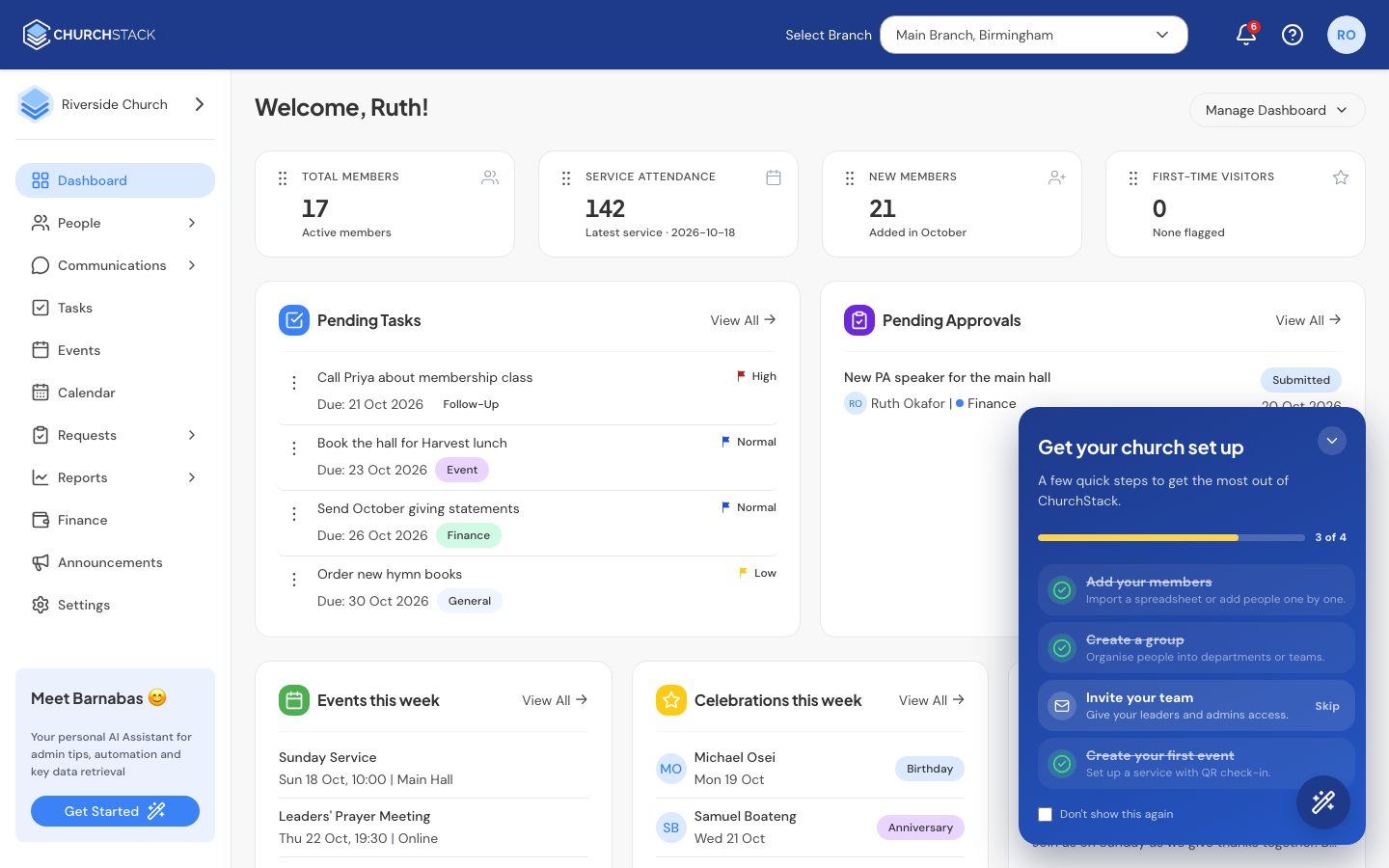
The dashboard is the first page you see after signing in. It brings together the numbers and lists that matter this week, so you can see what needs attention without opening each section.
What is on it
- Stat cards across the top: Total Members, Service Attendance, New Members and First-Time Visitors, each with the change since the last period.
- Pending Tasks: tasks that are not finished, with their due date and priority. Select Add task to create one.
- Pending Approvals: requests waiting for review. Select Make request to raise one.
- Events this week: the next five services and events, including each week of a recurring one. Select one to open it.
- Celebrations this week: birthdays and wedding anniversaries from your contacts’ details.
- Announcements: the latest news shared with your church.
Each panel has View All to open the full page behind it.
Choose what you see
Select Manage Dashboard at the top right and tick or untick the panels you want to see. Your choice is remembered on this computer.
What you see also depends on your role: someone who cannot open Finance will not see giving figures, for example. If your church has more than one campus, the dashboard follows the campus chosen in the header.
The setup guide stays in the corner until you finish or hide it. See Your setup checklist.
Tell us what you were trying to do and we will help.