Groups
Organise people into service units, fellowships and interest groups, choose leaders, and message a whole group at once.
Groups are how you organise your church: the choir, ushers, youth fellowship, a home group. Each group has members and one or more leaders, and you can email or text a whole group in one go.
Create a group
- Go to People > Groups and select Add Group.
- Enter a Group name (for example “Choir Ministry”), choose a Type and add a short description.
- Tick the Members to add. Use the search box to find people quickly.
- Select Create group.
Group types are Service Unit, Fellowship, Interest Group and Others. The tabs at the top of the Groups page filter by type.
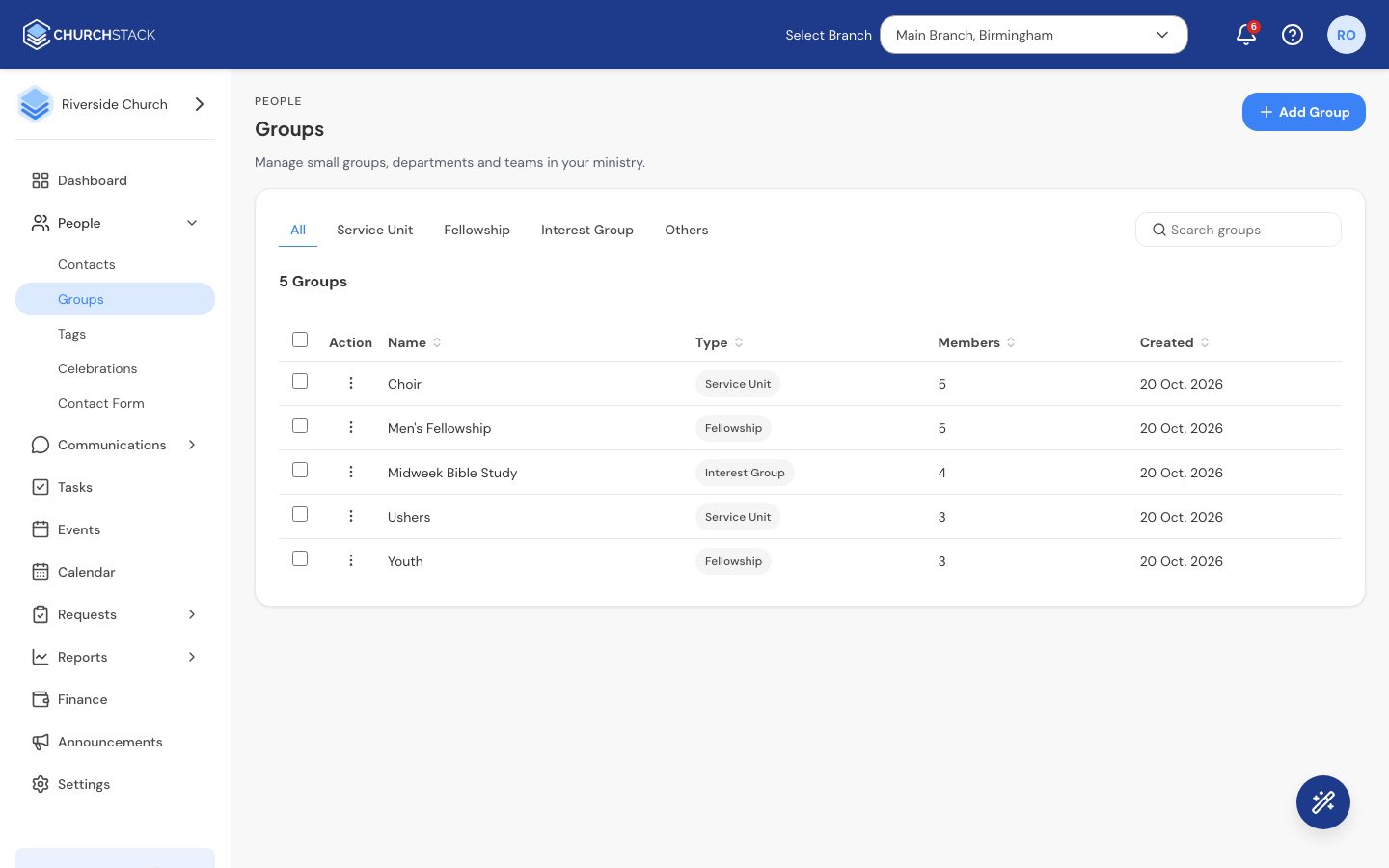
Inside a group
Select a group’s name to open it. At the top are its numbers: Total Members, New This Week, Milestones This Week and Upcoming Rotas. Below are three tabs:
- Members: everyone in the group, with a note of birthdays and wedding anniversaries today. Select Add Members to add more.
- Meetings: meetings for this group. You create these in Events and choose the group as the audience. See Create an event.
- Rota: who is serving in which role on a date. See Group rotas.
Group leaders
In the Members tab, open a member’s row menu and select Make group leader. Leaders are marked with an L. Select Remove as leader to undo it.
Leaders can manage their group in the member app, including moderating its chat.
Message a group
Open a group’s row menu on the Groups page, or the menu inside a group, and choose Send Email or Send SMS. To message several groups, tick them on the Groups page first.
Invite a group to the member app
Inside a group, select Send App Invites. Everyone in the group with an email address receives a link to your church’s app. Members without an email address are skipped.
Edit or delete a group
Use Edit Group to change its name, type or description. Delete Group removes the group and its membership list. The people in it are not deleted; they stay in your contacts.
Tell us what you were trying to do and we will help.