Your groups, chat and rotas
For church members: see your groups, chat with members, and check when you are serving.
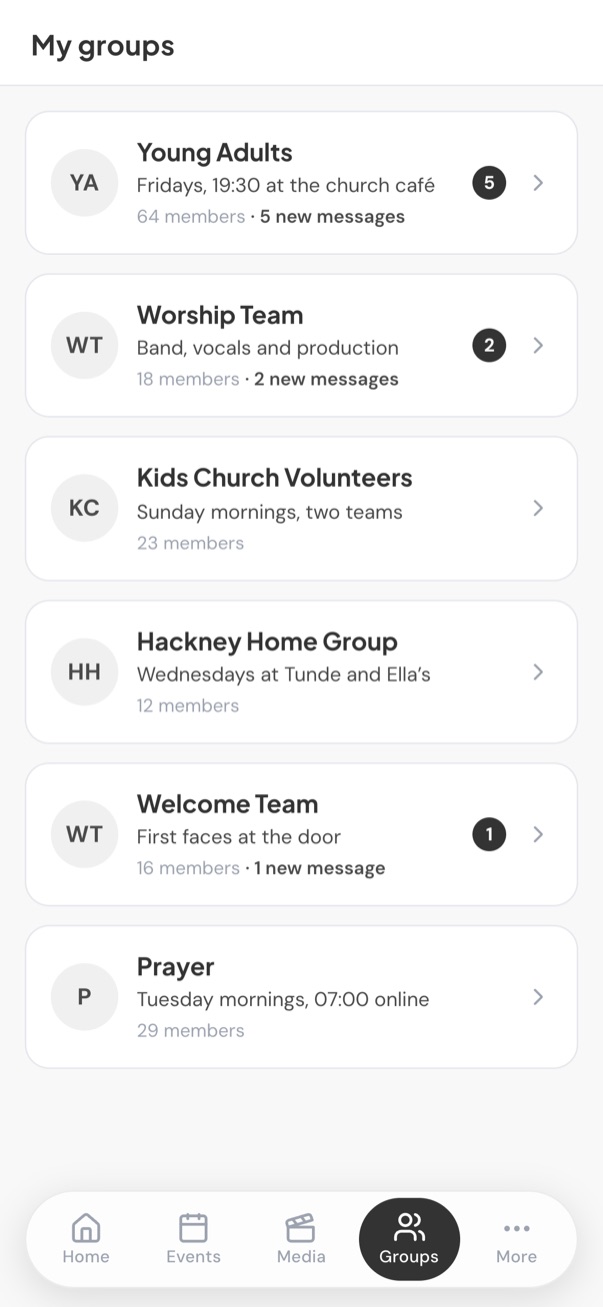
The Groups tab shows the groups your church has added you to, with a badge when there are new messages. If it is empty, ask the church office to add you to your groups.
Tap a group to open it. There are four sections:
- Members: everyone in the group. Leaders are marked L.
- Meetings: the group’s upcoming meetings, with the agenda and a Join online button for online ones.
- Chat: a conversation for the whole group.
- Rotas: when the group is serving, which roles need filling and who is on each.
Group chat
Type in Write a message and tap send. Everyone in the group sees it. Be kind: group leaders can remove messages.
To remove one of your own messages, tap the remove button beside it and confirm with Remove.
Rotas
Each rota shows its date, the roles and who is assigned. A rota with gaps shows how many roles are unfilled. If you are on a rota you will get a notification, if you have turned them on.
Still stuck?
Contact support Tell us what you were trying to do and we will help.