Member requests
Handle what your congregation asks you from the member app: detail changes, questions, prayer requests and concerns.
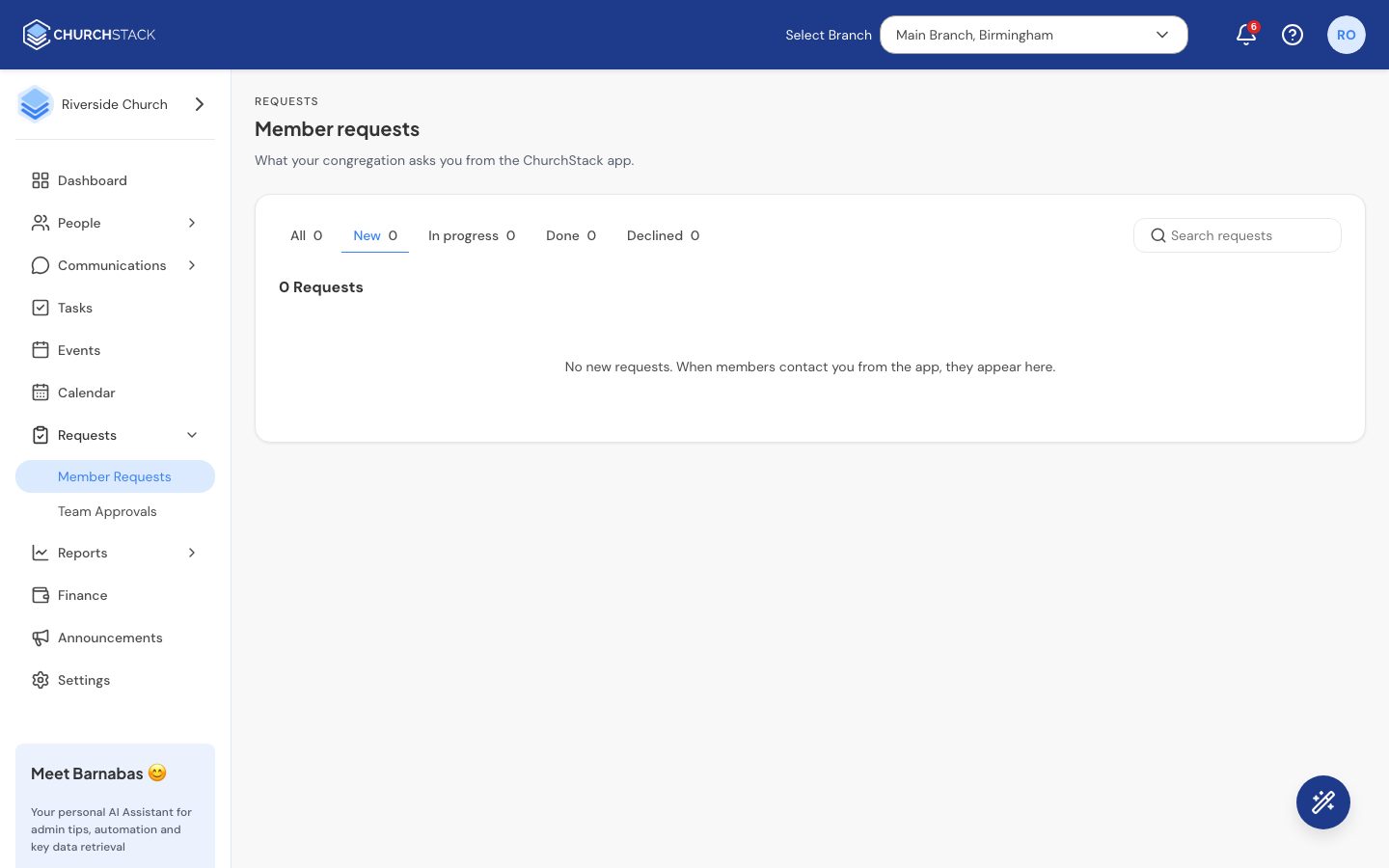
Members can contact your church from the ChurchStack app. Everything they send lands in Requests > Member requests, so the office has one place to see what has been asked, who is dealing with it and what is still outstanding.
Requests go to your church only. ChurchStack does not see or handle them.
What members can send
| Type | Where they send it in the app |
|---|---|
| Profile | Profile > Ask for a change: a correction to their name, email, phone, birthday or address. |
| Question | More > Contact your church |
| Prayer request | More > Contact your church |
| Concern or complaint | More > Contact your church |
| Something else | More > Contact your church |
How you hear about one
- A number on Requests in the sidebar shows how many are new.
- Everyone who can edit People gets a notification (the bell). Selecting it opens the request.
- An email goes to your church’s Contact Email (Settings > Organisation). Replying to that email reaches the member directly.
Work through them
The table opens on New. The tabs filter by All, New, In progress, Done and Declined, each with a count, and you can search by member, type or wording.
Select a request to open it on the right. You will see who sent it, their contact details and campus, the request itself, and its history.
Statuses
| Status | Meaning |
|---|---|
| New | Nobody has picked it up yet. |
| In progress | Someone is dealing with it. Replying to a New request moves it here and assigns it to you. |
| Done | Finished. |
| Declined | Not going ahead. You must give a reason, and the member sees it. |
Assign it
Use Assigned to to give a request to one person on your team. They get a notification. This stops two people answering the same thing.
Reply
Write in Reply to and select Send reply. The member gets it in the app’s inbox (with a push notification if they allow them) and by email. Every reply is kept in the history.
Apply a detail change
For a Profile request, the panel shows the detail as it is Now and what the member Requested. Check it, correct any typo in Apply this value, then select Apply change. ChurchStack updates their contact record, marks the request Done and tells the member.
Changing someone’s email changes the address they sign in to the app with.
Who can see and act on requests
This follows the People permission in Settings > Roles & Permissions. Roles that can view People can see requests; roles that can edit People can reply, assign, change status and apply changes. See Roles and permissions.
Tell us what you were trying to do and we will help.