Count the offering
Count Sunday's offering envelope by envelope, check it against the total in the bag, and post it to the ledger.
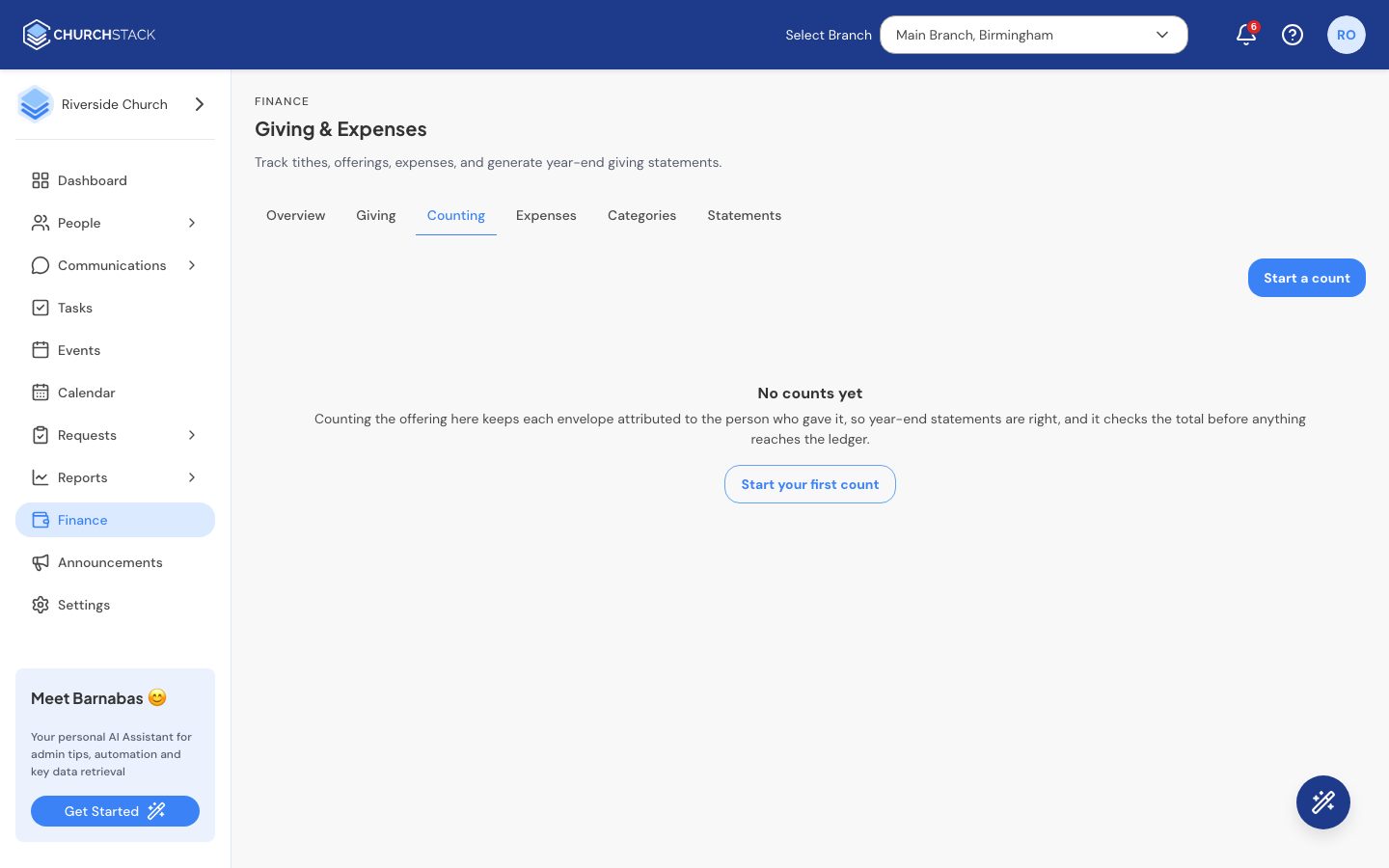
Counting in ChurchStack does two jobs. It records each envelope against the person who gave it, so their year-end statement is right, and it checks that what you itemise adds up to what is in the bag before anything reaches your books.
It works best with two counters together.
Start a count
- Go to Finance > Counting and select Start a count.
- Enter the Date of the service and who is counting (for example “Grace and Sam”).
- Count the cash and cheques together and enter the Total in the bag: the figure you both agree is there before you start itemising.
- Select Start counting.
Add each envelope
For each envelope, type the Amount, choose the Fund, pick the Giver (leave it as anonymous for loose cash) and, optionally, the envelope number. Press Enter or select Add. The line appears in the list below.
At the top, Counted shows the running total and Expected shows the total in the bag, with the difference between them.
Made a mistake? Select Remove on a line and add it again.
If the envelopes are right and the first figure for the bag was wrong, correct the expected total instead.
Close and post
When Counted matches Expected, select Close and post. Every line is added to Giving as a gift. A count will not close until the two figures agree; that is the check.
After closing, a count cannot be changed. If you find a mistake later, record the correction as a new count.
The list of counts shows each one’s date, who counted, the number of envelopes, the total and whether it is In progress or Closed.
Tell us what you were trying to do and we will help.